 DiAuto ProIndependent community project
Android Auto.
Right on your BYD.
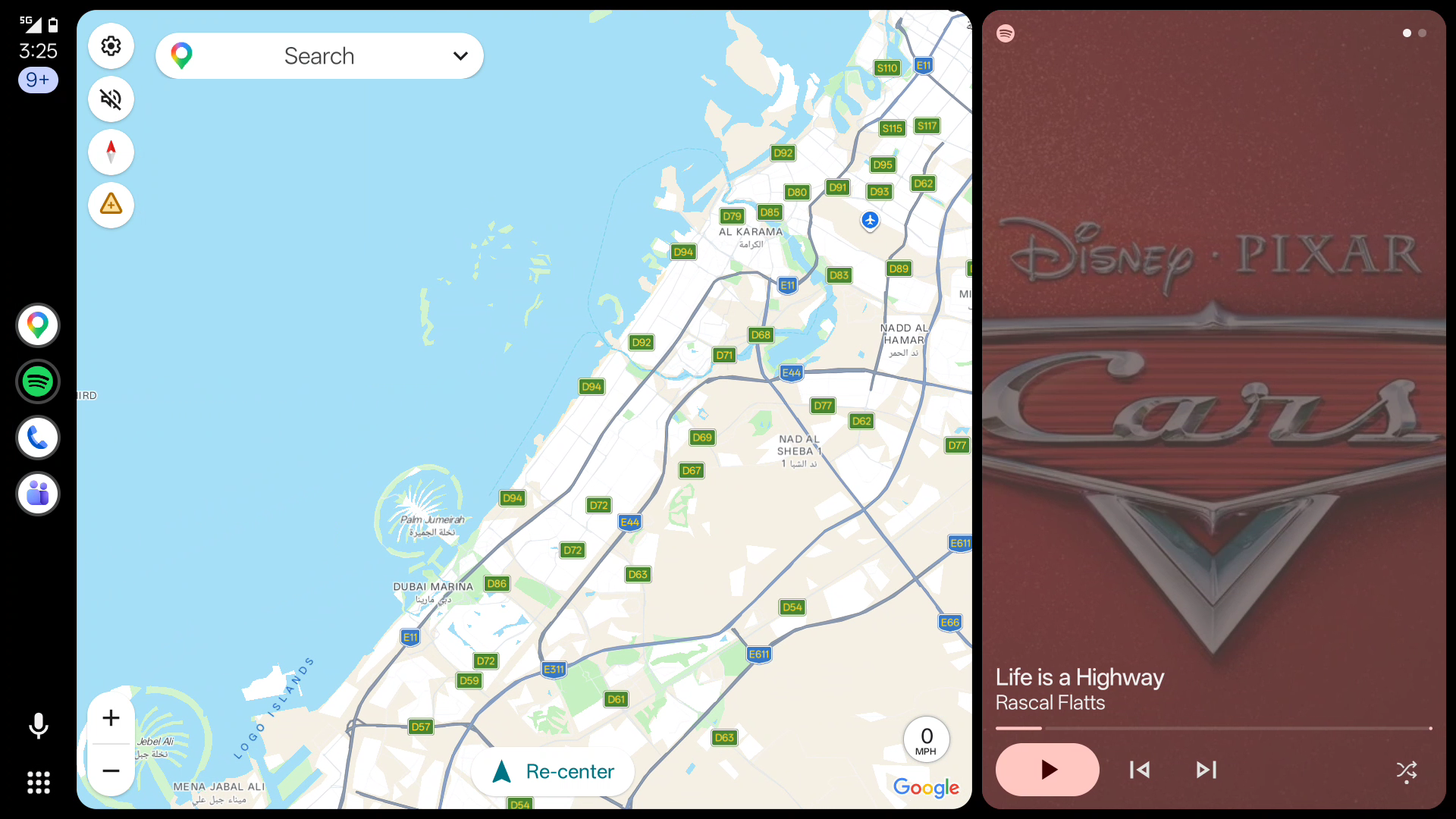
Your maps, music and conversations on the car display. Project maps and navigation onto the instrument cluster or the HUD window. DiAuto Pro brings wireless Android Auto to compatible BYD DiLink head units, with a simpler interface and smoother scrolling.
No additional phone app. No dongle or external hardware. No root.
Install DiAuto Pro on the car. Your compatible Android phone uses its built-in Android Auto support. An Android phone is still required; this is not Apple CarPlay.
These projects focus on BYD cars. They may work on other brands, but other brands are unsupported and there are no plans to add support or fix brand-specific incompatibilities.
Instrument cluster and HUD projection
Two independent projection paths ship in this fork. Both are opt-in, both are experimental, and neither needs ADB, root or a dongle.
Map mirror on the instrument cluster
Put the Android Auto picture on the cluster display, next to the speed and gear read-outs. The mirror adapts to each firmware, so it never covers the instruments.
- Supports DiLink 4.0 / 5.0 / 5.1 instrument cluster projection, choosing the projection method and area for the firmware automatically.
- Speed, gear and the other stock instrument read-outs stay live and uncovered.
- The cluster mirror itself is off by default — turn it on under Settings → Advanced → “Instrument cluster map mirror”. Once it is on, the mirror timing setting below decides when it mirrors.
Choose when the cluster mirrors
Mirroring the whole time is not always what you want. Three strictly nested tiers let the cluster keep showing the car’s own display when you do not need the map. These tiers only apply once the cluster mirror is switched on, and the default tier is Always — so with the mirror on, a live session mirrors continuously until you change it.
- Always — mirrors whenever a session is up (the default tier once the mirror is on).
- Cruise + nav — mirrors whenever a map is on screen, guided or not.
- Nav only — mirrors only during active turn-by-turn guidance.
- Driven by Android Auto’s own instrument signals rather than by guessing from screen contents, with a 30-second window so a long straight road does not blink the mirror off.
Windshield navigation on DiLink 5.1
Turn arrows, next-turn distance and street names can appear on the windshield HUD on verified firmware, without ADB, root or a helper process. This is a separate path from the map mirror and can be used on its own.
- Physically confirmed on DiLink 5.1 / Android 13; a contributor independently reported DiLink 5.0 operation.
- The stock receiver path is restricted to the verified firmware and receiver version; other firmware is not implicitly enabled.
- The map app must supply structured navigation metadata — per-app compatibility is not guaranteed.
- Opt-in under Settings → Navigation.
Firmware support at a glance
| Capability | DiLink 4.0 | DiLink 5.0 | DiLink 5.1 |
|---|---|---|---|
| Cluster map mirror | Implemented, unverified | Implemented, unverified | Verified on car |
| Mirror timing tiers | Yes | Yes | Yes |
| Windshield HUD navigation | No | Reported by contributor | Verified on car |
| Wireless / USB Android Auto | Android 10 paths, unverified | Android 10 paths, unverified | Verified on car |
“Implemented, unverified” means the code path is written and covered by unit tests, but it has not been exercised on a real vehicle of that firmware. Please report what you see.
Made for the car
Install on your car
- Download the APK and install it on the head unit using its permitted APK installation method, or use the ADB guide below. Do this while parked.
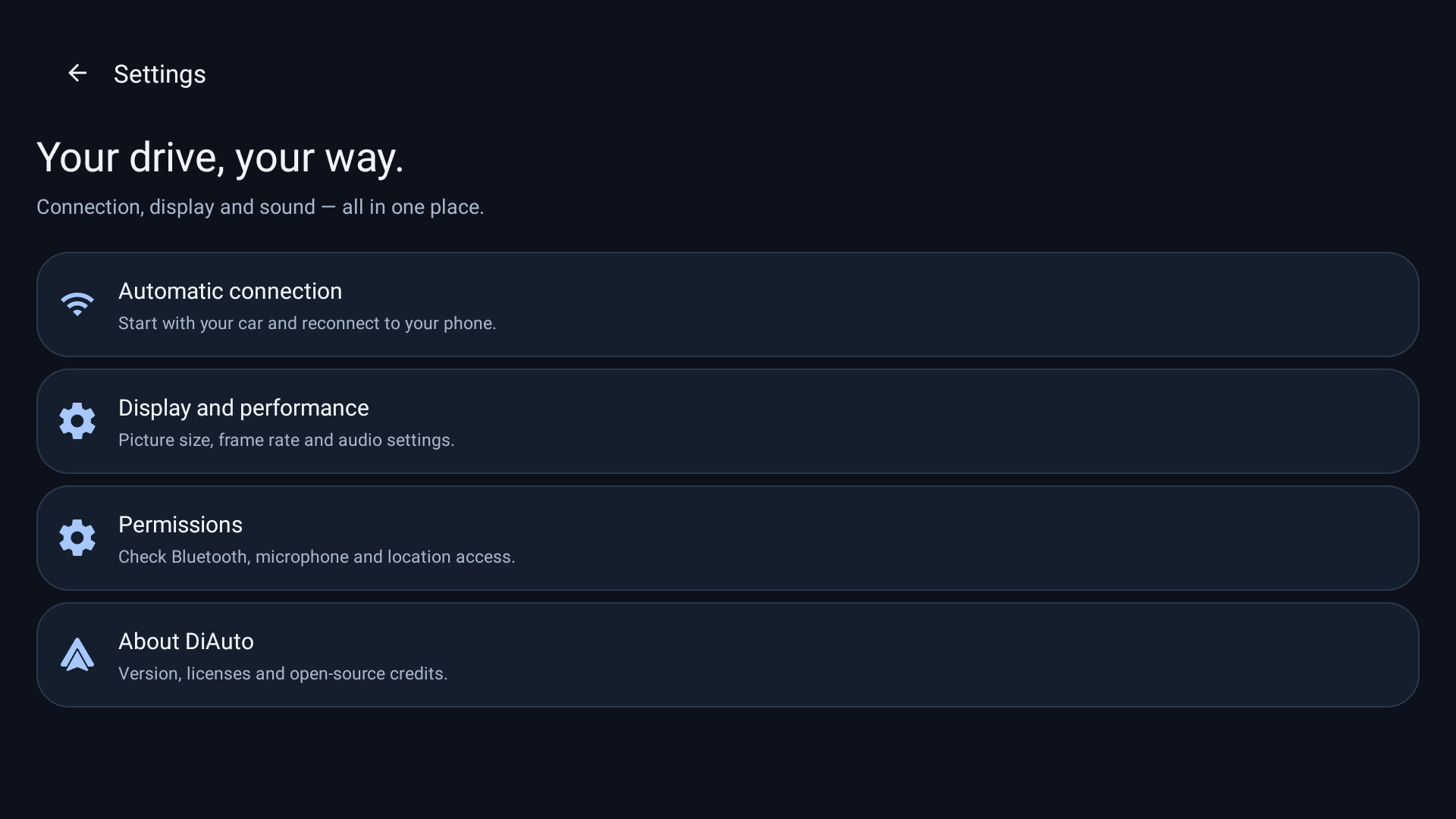
- Open DiAuto Pro and complete setup. Grant the Bluetooth, Wi-Fi/location, microphone and other permissions requested for the features you use.
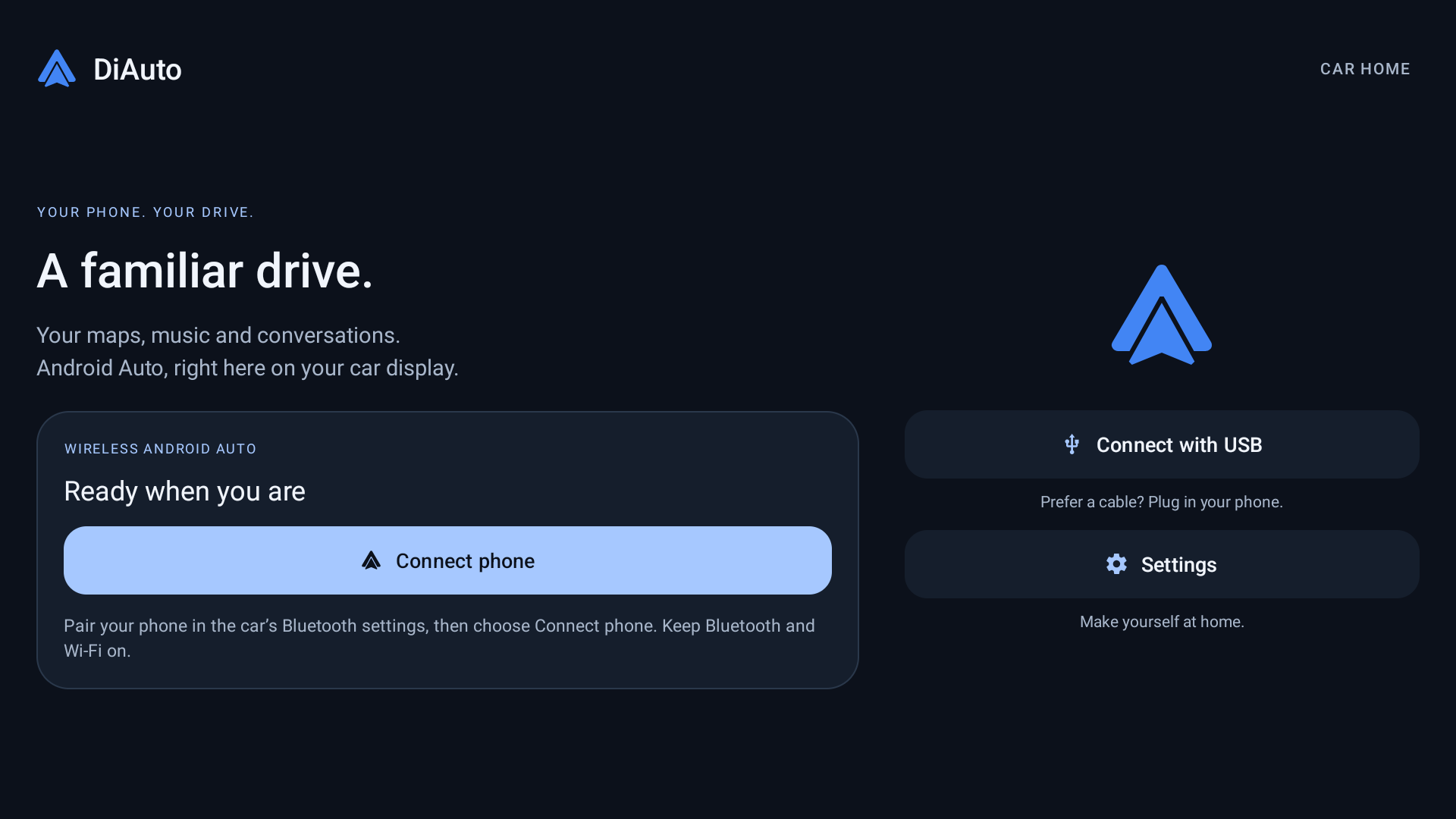
- Turn on the car’s built-in hotspot (5 GHz if available). In Settings → Connection setup, select Built-in car hotspot and save its exact name and password. Keep phone Wi-Fi and Bluetooth on, pair with the car, then tap Connect phone and accept the phone prompts.
- Prefer a cable? Connect your phone with a USB data cable and choose Connect with USB.
DiAuto Pro automatically recovers the Wi-Fi Direct address on supported DiLink firmware. Leave Static BSSID on Auto; no ADB setup is needed for this recovery. Some firmware and phone combinations may still have connection issues.
Installation & pairing help ↗What’s new
- Instrument cluster map mirror, with selectable mirror timing — the Android Auto picture beside your speed and gear read-outs.
- Windshield HUD navigation — turn arrows, next-turn distance and street names on verified BYD firmware, with no ADB, root or helper computer.
- DiLink 4.0 / 5.0 / 5.1 support for the cluster mirror, with the projection area adapted per firmware so the mirror never covers the instruments.
- Connection setup, diagnostics and audio settings localized for English, Simplified Chinese, Arabic, Russian and Spanish; Arabic RTL layout; 20+ community app translations.
- Automatic Wi-Fi Direct address recovery on supported DiLink firmware, without ADB setup.
- Automatic translation-coverage and format checks help prevent regressions.
Compatibility
The cluster mirror and the windshield HUD navigation target BYD DiLink 4.0, 5.0 and 5.1. Only DiLink 5.1 with Android 13 has been exercised on a real car — wireless, USB and the 5.1 cluster layer handling. The DiLink 4.0 / 5.0 cluster paths and the Android 10 connection paths are implemented and unit-tested but not yet verified on hardware; if you run one of those firmwares you are an early tester. Outside BYD, compatibility is not guaranteed. Constant 60 FPS is not promised.
Get release updates
Follow the Telegram channel for new versions and project news.
Updates & signing
Install over the previous public release to retain settings; the public signing key is unchanged. Test builds use a separate app package.